
Share the call's audio
Press Listen to the call, pick the tab your call is in, and tick Share tab audio. For the Zoom or Teams desktop app, share your whole screen with Share system audio instead.
How it works
Every picture below is the real product running against the real server — photographed, not drawn. Seven screens from making an account to reading the notes afterwards, and nothing to install at any point.
Chrome or Edge on a computer. The Windows app is optional.
Step one
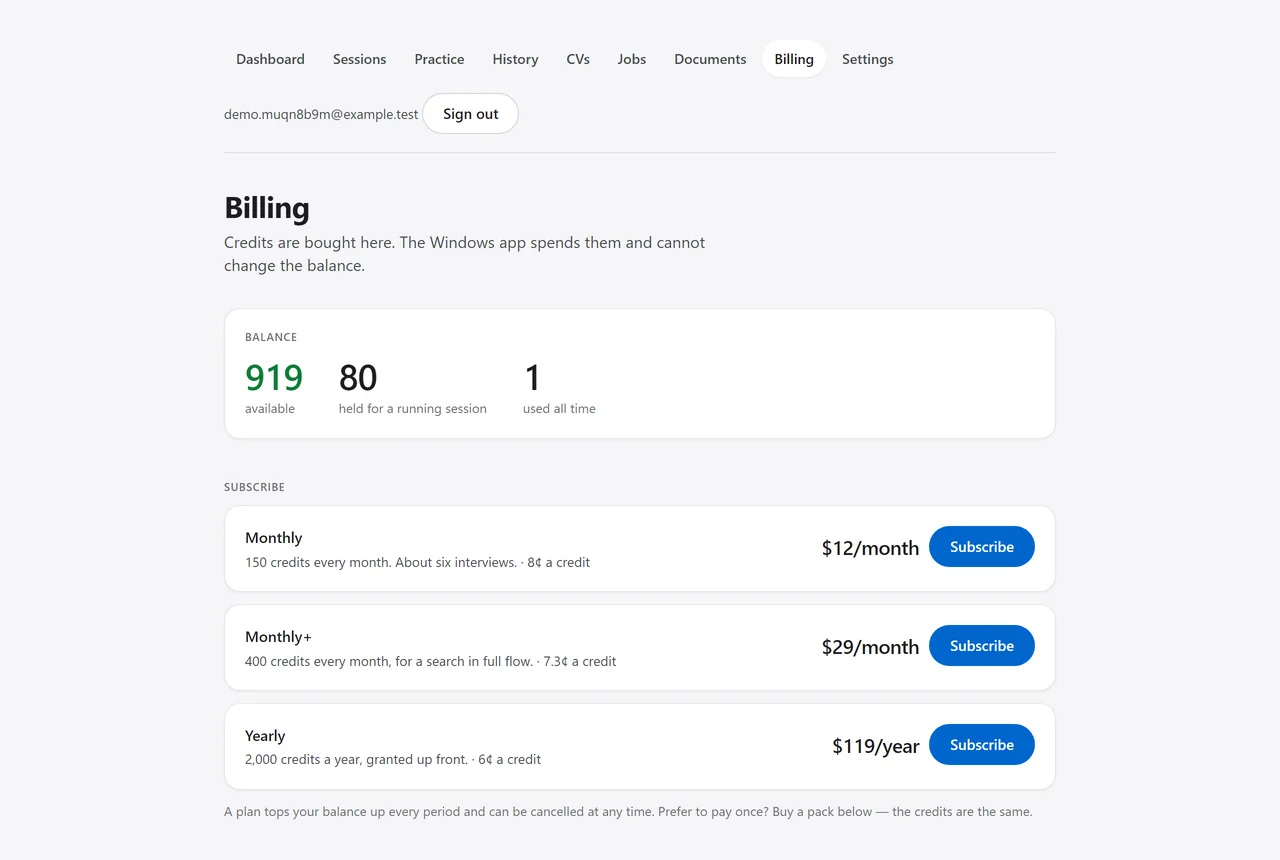
One account for the website, the browser assistant and the Windows app. Credits arrive the moment the payment clears — a pack is a single payment and they do not expire. What a credit buys →
Step two
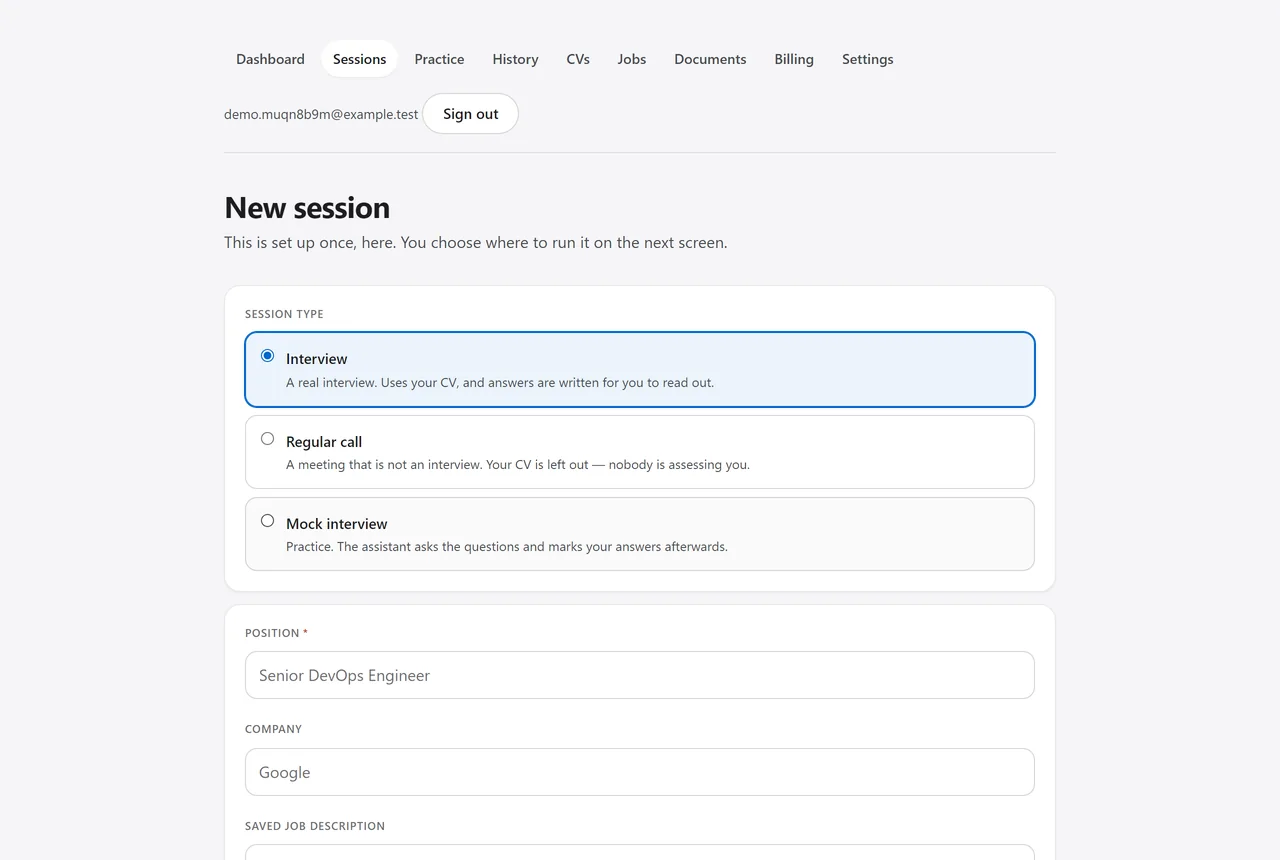
The company and the role, the job description, which CV to answer from, the documents it may draw on, and how you want the answers: how long, how formal, which language. Set once; every session can reuse it.
Step three
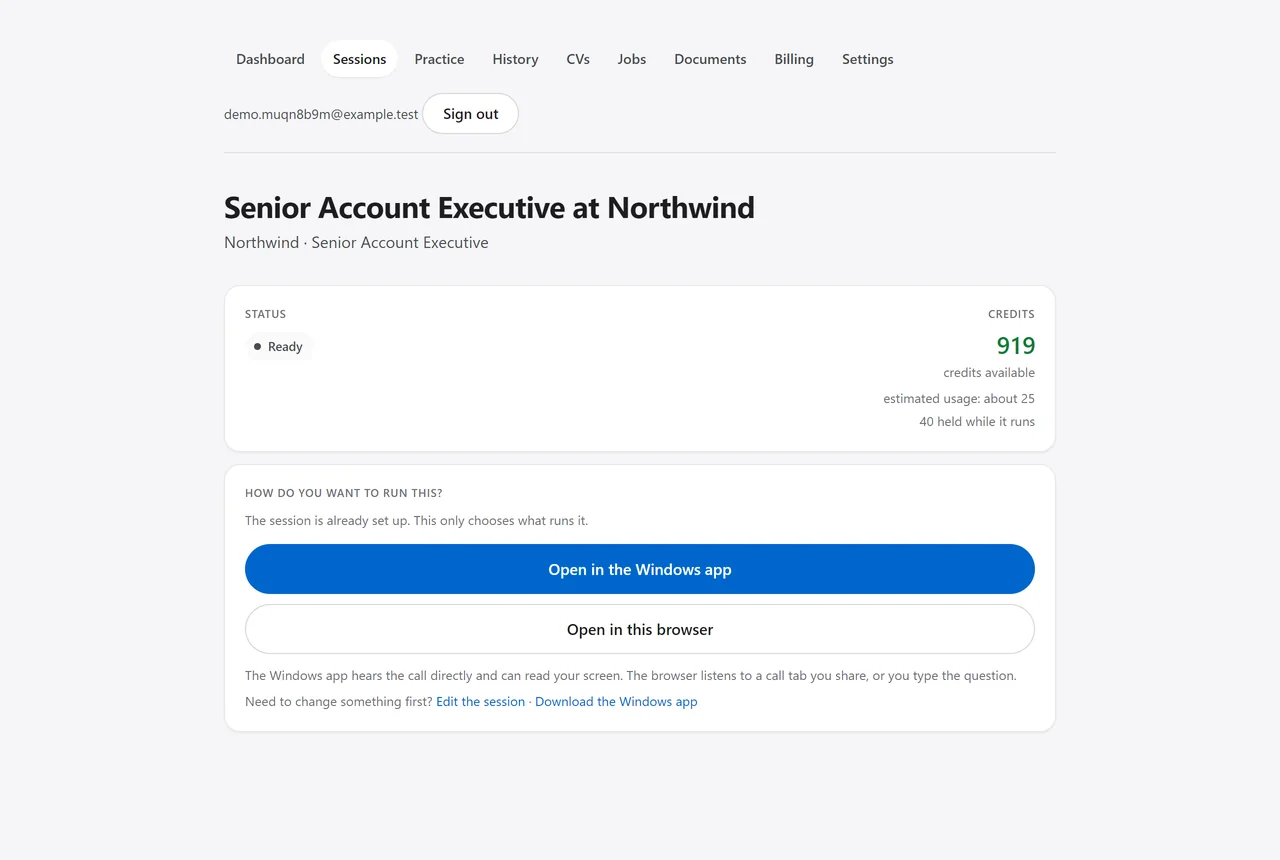
This is the part most people expect to be the other way round. The session is already created and paid for; the only thing left to decide is where to run it. Starting one holds 40 credits so it cannot run out part way, and whatever it does not use comes straight back.
Step four
No download, no extension, no bot in the meeting. The live screen is one tab beside your call.
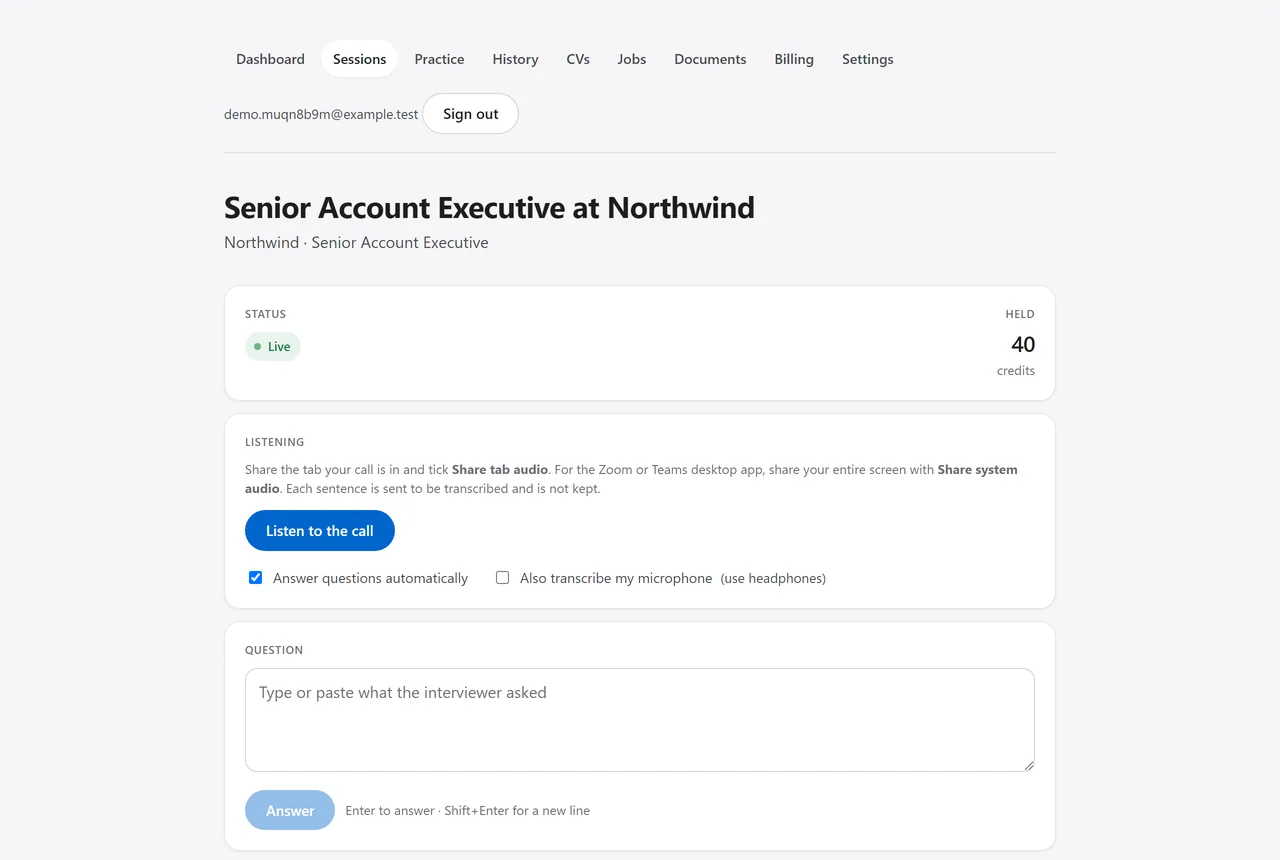
Press Listen to the call, pick the tab your call is in, and tick Share tab audio. For the Zoom or Teams desktop app, share your whole screen with Share system audio instead.
The box is always there. Right for an interview in a room, a question that arrived over chat, or any time you would rather not share a screen.
No audio is added, no participant appears, and no recording bot asks for admission. It reads what your machine is already playing.
Step five
The first words land in a second or two and the rest arrives while you are already speaking. If it is not the answer you want, one press rewrites it around what you have said.
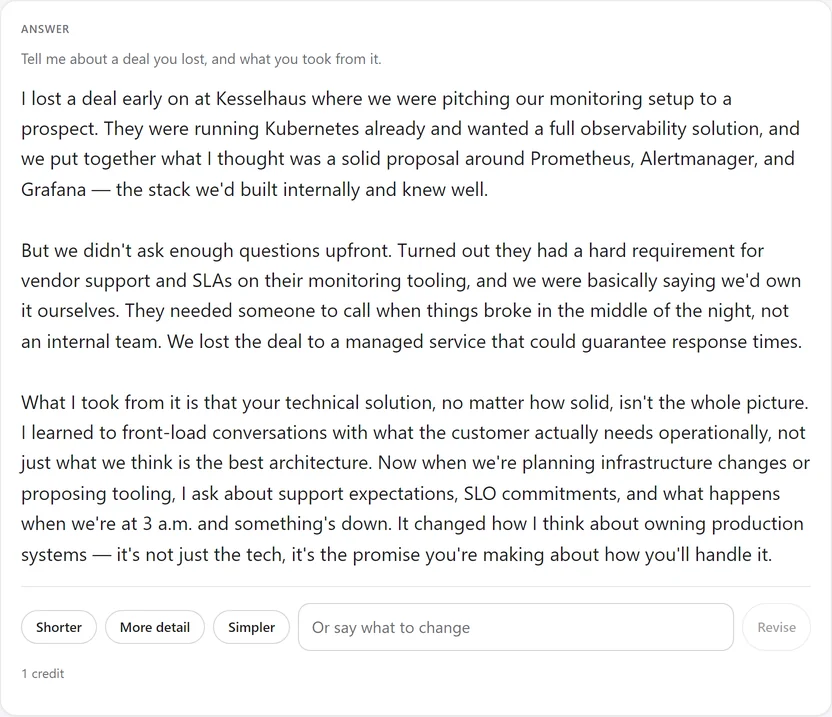
That answer was written by a real model during the capture, from the CV attached to the demo account — which is why it reaches for that account's own experience rather than answering in general terms. Nothing on this page is mocked up.
Step six
Ending the session settles the credits and writes the notes from the transcript: what you were asked, what was suggested, where an answer was thin, and what to revise.
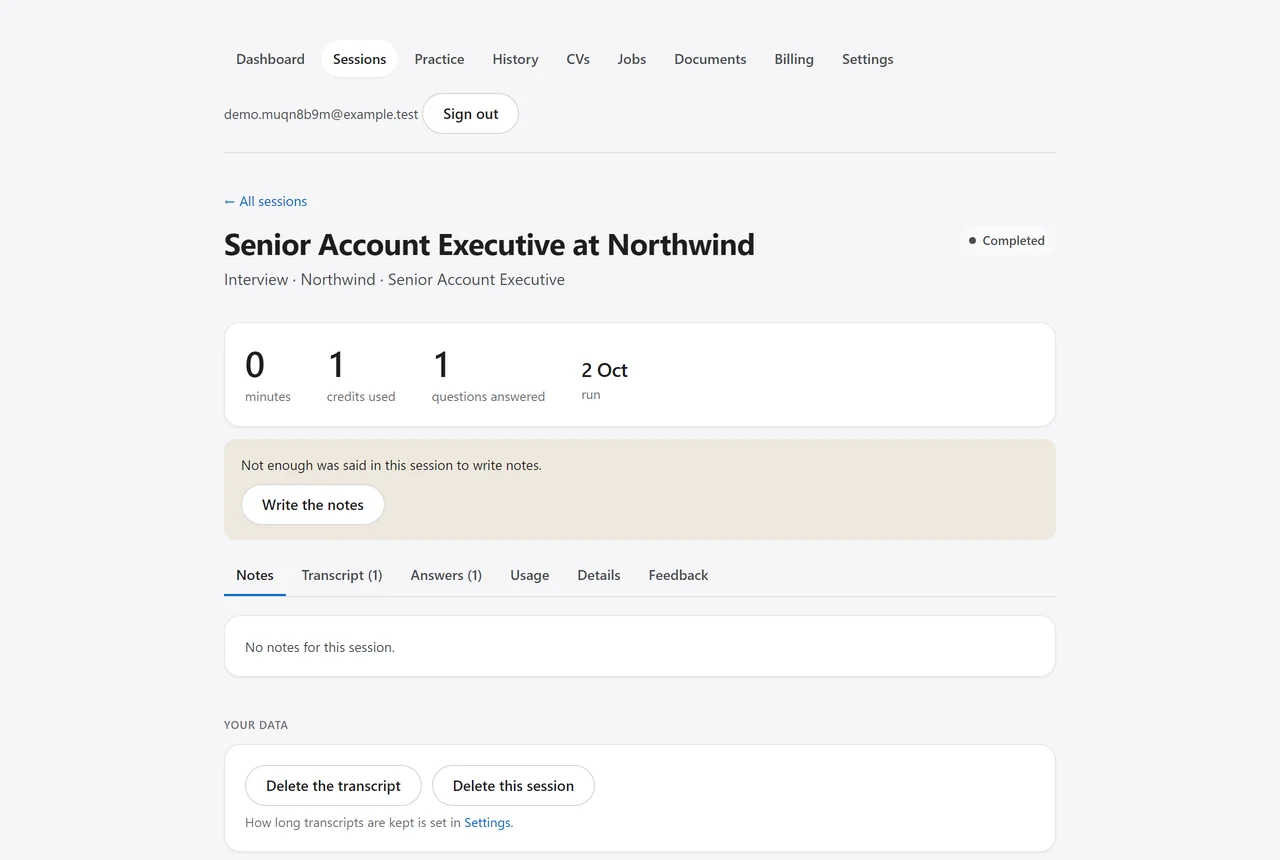
And it is all kept
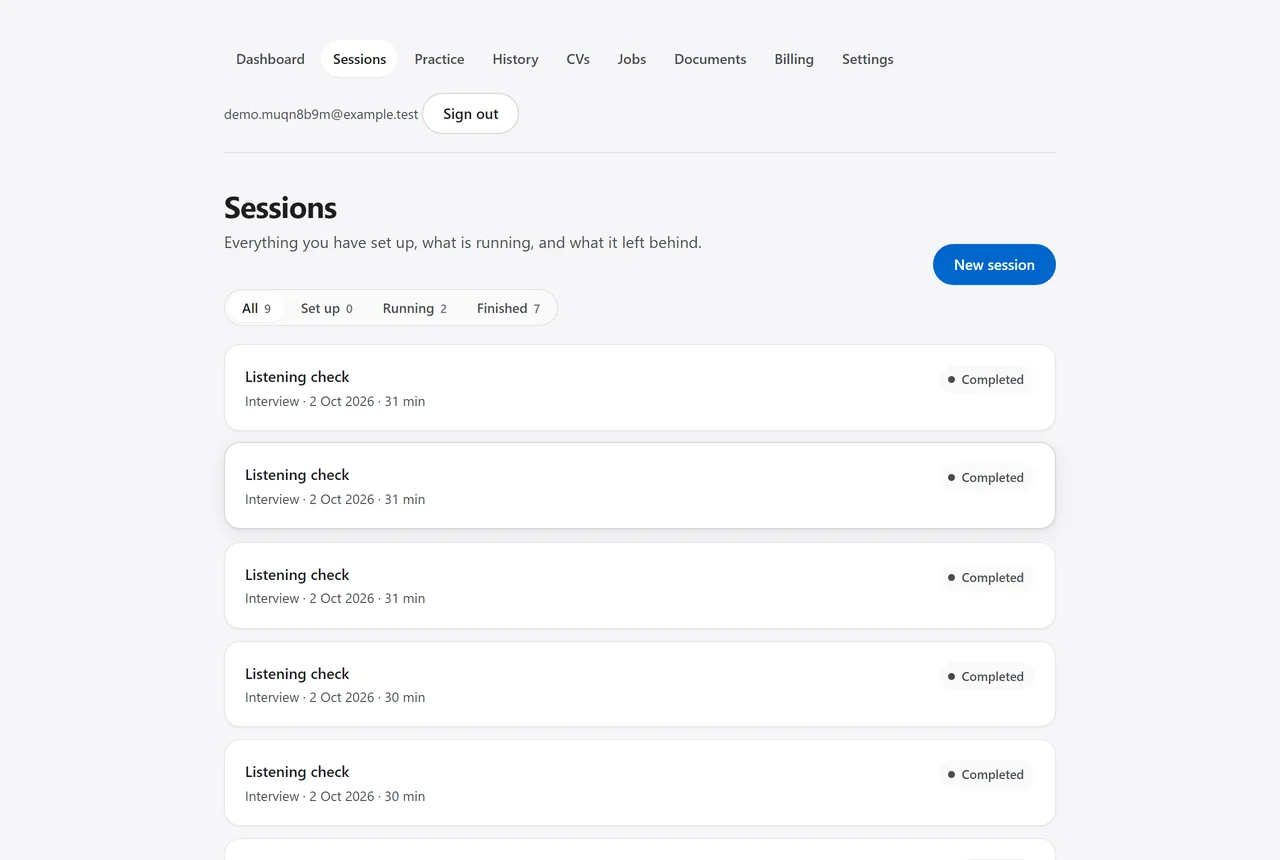
The dashboard lists what you have run, what state each one is in and what it used. You choose what is kept: transcripts indefinitely, for thirty days, or deleted the moment the notes are written. How your data is handled →
Questions
No. Chrome or Edge on a computer is all it takes. The one thing a browser needs your permission for is hearing the call, which it does through the same screen-sharing picker you already use — you choose the tab or window, and tick the box that shares its audio.
You share the call's tab or window and tick "Share tab audio", and the browser hands the assistant the same audio the call is playing. For a desktop Zoom or Teams app, share your entire screen with "Share system audio" instead, because the call is not in a tab.
No. Nothing joins the call — no audio, no participant, no bot in the list. The assistant reads audio your machine is already playing and writes to your own screen. What gives anyone away is reading aloud, which is why the answers are written to be spoken rather than recited.
Type or paste it at any time; the answer is identical. That is the right way to use it for an interview in a room, for a question that came over chat, or when you would rather not share a screen at all.
The session waits five minutes. Reopen it — in the same tab, a new one, or the Windows app — and you carry on where you were, with the credits already held. Nothing is charged twice.
Yes. It is one session: open it in the other client and it continues there. The Windows app hears the call directly rather than through a shared tab, transcribes on your own machine, and can read a question off your screen.
Read next
Make an account, add a CV, paste the job description, and run the first one tonight.
Create your account